Here’s something I wish someone had told me sooner: Pinterest is not just a pretty mood board: it’s a powerful business tool. And right now, thousands of small business owners and bloggers are using it to drive serious free traffic to their websites every single day. The question isn’t whether Pinterest works. The question is: why aren’t you using it yet? Don’t worry, by the end of this post, you’ll know exactly what to do. Let’s get into it!
Disclosure: This post may contain affiliate links, meaning if you decide to purchase via my links, I may earn a commission at no extra cost to you. Please read my disclaimer for more info.
Why You Should Use Pinterest For Business
Still not convinced Pinterest is worth your time? Let me give you three reasons that might just change your mind.
Most Pinterest users are actually buyers
Here’s something that blew my mind when I first learned it: over 80% of Pinterest users are actively looking to buy or get inspired to buy. These are not people mindlessly scrolling — they are people with intention. And the best part? You don’t need a massive following to reach them. I recently came across someone with only 12 followers who was pulling in 1.8 million monthly impressions. Yes, really. On Pinterest, your content can reach people way beyond your own little corner of the internet — and that means more eyes on your blog, your website, and your products without burning yourself out trying to grow an audience first.
You’ll spend way less time than you think
Okay, real talk — when I was relying on Facebook for business, I was spending at least 5 extra hours a week in front of my laptop. Creating content daily, keeping up with the algorithm, trying to stay visible… it was exhausting. Don’t get me wrong, I still use Facebook, but it felt like I was a full-time social media slave with part-time results. When Pinterest became my number one traffic source, everything shifted. Less work, more visibility, more traffic. It sounds like magic, but it’s really not; it’s just a smarter way of working. And trust me, if I can do it, anyone can.
Pinterest ads are cheaper than you’d expect
If you’ve ever tried running ads on Facebook or Instagram and felt your wallet cry a little, Pinterest ads are going to feel like a breath of fresh air. You can reach a highly engaged, purchase-ready audience for a fraction of the cost. And because Pinterest users are already in a discovery and buying mindset, your ads tend to perform better, too. More bang for your buck, always a win, right?
How To Set Up a Pinterest Account For Your Business
Alright, let’s get your Pinterest business account up and running! It’s easier than you think, I promise. Just follow these steps, and you’ll be set up in no time.
Quick tip: I recommend following these steps on your laptop or desktop computer rather than your phone — it’s just a lot easier to navigate!
Step 1: Create your business account
You have two options here; pick whichever works best for you.
Option 1: Convert your existing personal account. Already on Pinterest? Great, you can simply turn your personal profile into a business account in a few clicks:
- Log in to your Pinterest account
- Go to “business” and to “convert.”
- Fill out your business name, website, and select a business type
- Click “Create account,” and you’re done!
Option 2: Start fresh with a new business account. Prefer to keep your personal and business accounts separate? Totally fair! Here’s what to do:
- Log out of your personal account at Pinterest
- Go to pinterest.com/business/create/
- Fill out your email, password, and business name, then select a business type
- Click “Create account.”
Want the official steps straight from Pinterest? I’ve linked their article for you right here.
Step 2: Complete your profile — don’t skip this!
This part is so important, and so many people rush through it. Your profile is basically your first impression, so let’s make it a good one:
- Upload a headshot photo — and smile! People connect with people, not logos.
- Choose your username — use your brand name or your own name if you’re building a personal brand. Try to include a relevant keyword here too (think: “Pinterest Marketing Tips” or “Healthy Recipe Ideas”).
- Write your bio — this is prime SEO real estate. Use keywords that your ideal audience is actually searching for, so Pinterest can put you in front of the right people.
- Add your location — a small touch, but it adds credibility.
- Add your website — this is a must. We’ll verify it in the next step!
Want to speed up your keyword research? Check out my other post about the best Pinterest keyword tools that blew my mind — it’s a total game changer.
Step 3: Verify your website on Pinterest
This step tells Pinterest that you actually own your website, and it helps your content rank higher. Here’s how to do it:
- Log in to Pinterest from a desktop browser and click the arrow in the top right corner to open your menu
- Select “Settings.”
- Click “Claim” and enter your website URL, then click “Claim.”
- Select “Add HTML tag.”
- Copy the tag and click “Next.”
- Go to the index.html file of your website and paste the tag into the <head> section, before the <body> section
- Go back to Pinterest and click “Submit.”
Sounds a little techy, but once you’ve done it once, it takes about 5 minutes. You can also find these steps on Pinterest’s own blog post if you want to double-check anything.
Step 4: Set up your boards and pins
Now for the fun part! Once your account is all set up, it’s time to create your Pinterest boards and start pinning. The key here is keywords, so make sure you include them in both your board titles and your pin descriptions. This is how Pinterest knows what your content is about and who to show it to.
Personally, I use Pinclicks (free to try here) to create my pin text quickly and efficiently, and it saves me so much time. But if you prefer to write everything manually, that works too! And if you want to go deeper on this, I’ve written a full guide on how to optimize your Pinterest to get more traffic. Definitely worth a read!
How To Automate Your Pinterest With Their Built-In Scheduler
Here’s one of my favorite things about Pinterest: you can schedule your pins directly inside the platform. It’s free, and no third-party tools are needed. Here’s how it works:

Click “Business Hub” in the top left corner, then select “Create Pin.”
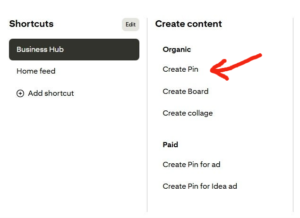
From there you’ll:
- Upload your pin image
- Fill out your title, description, and alt text
- Add your link
- Choose the most relevant board
At the bottom of the page, you’ll see two options: Publish immediately or Publish at a later date. Choose “Publish at a later date,” pick your preferred date and time, and that’s it. Your pin goes live automatically, whether you’re answering emails, sleeping, or having a family movie night on the couch.
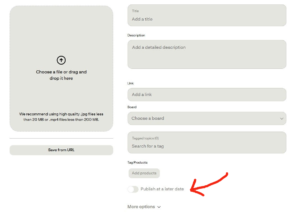
The one downside? Pinterest only lets you schedule up to 100 pins at a time, and just one month ahead. Not ideal, but honestly still a huge time saver compared to posting everything manually.
That’s why I also use the amazing pin scheduler Tailwind (you can try it out for free here).
How To Create Pins That Actually Get Clicked
Pinterest is a visual search engine, and that means the way your pins look really matters. But here’s something I had to learn the hard way: cute alone doesn’t cut it. Your pins need to be both visually appealing AND optimized for search. More on the optimization part later, let’s start with the basics.
First things first: always use a vertical format.
Vertical pins take up more space in the feed, which means more visibility. The ideal ratio is 2:3, and these are the sizes that work best: 1000 px / 1500px or 1080 px / 1920 px.
Now, how do you actually design them?
Designing pins can honestly be the most time-consuming part of your Pinterest strategy, especially when you’re just starting out. The good news is that you have options:
- Canva is a great free tool and super beginner-friendly. If you love designing and have the time, go for it! Use pretty stock images; you can find free stock photos in tis post.
- AI tools are what I personally use now, and they have been a total game-changer for me. I use theseTools to create stunning Pinterest pins and write high keyword texts in minutes, and I’m not exaggerating when I say they’ve saved me hours every single week.
I know not everyone is on board with AI yet, and that’s completely okay! Use whatever works best for you. But if you’re open to it, AI has helped me grow my business faster than I ever expected, and spending less time on design means more time on the things that actually move the needle.
How To Grow Your Pinterest Account
Here’s something that might surprise you: your follower count on Pinterest matters a lot less than you think. I recently came across an account with 12 (yes, 12!) followers that was pulling in 1.8 million monthly impressions. Wild, right? On Pinterest, great content wins over a big following every single time.
That said, growing your followers doesn’t hurt, and there are some really easy ways to do it:
- At the end of every blog post, invite your readers to follow you on Pinterest. (Like I’m doing right here — click here and come follow me! 😊)
- In your email newsletters, add a simple call to action asking your subscribers to follow you on Pinterest
- Add a Pinterest widget to your blog so visitors can follow you without even leaving your site
- Add a Pinterest share button to your posts, make it easy for people to share your content with their own audience
- In your videos, end with a quick call to action to follow you on Pinterest
Small, consistent efforts like these add up faster than you’d expect. Trust me.
Know Your Target Audience
Okay, this one is important, so I’m going to be straight with you. Not everyone is going to be interested in what you offer, and that’s completely fine. Trying to reach everyone is one of the biggest mistakes I see small business owners make. It wastes your time, your energy, and your budget.
The key is knowing exactly who your ideal audience is: what they struggle with, what they dream about, and what kind of content makes them stop scrolling and actually click. When you know that, everything gets easier. Your pins perform better, your blog posts connect deeper, and your sales start to grow.
To help you figure this out, here are the top 7 questions every small business owner should ask themselves to get to know their target audience:
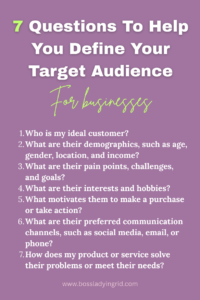
Answering these questions honestly will help you create a detailed picture of your ideal customer. And once you have that picture? You can create content that speaks directly to them, market in a way that actually resonates, and build a business that attracts the right people, and not just any people.
Check Your Analytics — Yes, Really
Okay, I’ll be honest with you, this used to be my least favorite part too. Analytics felt boring and overwhelming, so I just… ignored them. And that was honestly one of the biggest Pinterest mistakes I’ve ever made.
For way too long I was putting in time and effort on things that simply weren’t working, and I had no idea because I never stopped to check the numbers. So please, learn from my mistake and don’t do what I did.
Checking your Pinterest analytics doesn’t have to be complicated. Just click “Business Hub” in the top left corner, then select “Analytics Overview.” Spend some time getting familiar with what each metric means, and don’t worry, it gets easier the more you look at it.
One important thing to remember: don’t get too hung up on impressions. Impressions just mean people saw your pin — they don’t tell you if anyone actually clicked through to your website. Your real goal is outbound clicks. That’s the number that tells you how many people were interested enough to visit your site. That’s the number that leads to traffic, email subscribers, and sales. Focus on that.
Ready To Make Pinterest Work For You?
Now you know why Pinterest is one of the most powerful — and most underrated — tools for growing your business online. More visibility, more traffic, a growing email list, and yes, more sales. All from a platform that works for you even when you’re not actively posting.
When you use Pinterest the right way, the results don’t just come fast, they stick around for years. I’ve seen it in my own business, and I hear it from bloggers and small business owners all the time: Pinterest is their number one source of traffic and income.
So now it’s your turn. Take what you’ve learned in this post, implement the tips one step at a time, and watch what happens. You’ve got everything you need to get started; the only thing left to do is actually start.
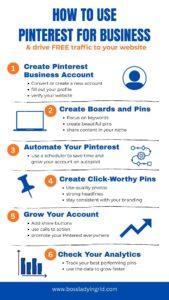
Save this image on your Pinterest board to come back to it later.